
This method automatically sends all new emails you receive to your new account. You will need to do this from your old Gmail account.
Step 1: Open your old Gmail account in a web browser
Visit mail.google.com
Step 2: In the top-right corner, click the Settings gear icon
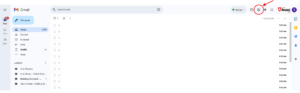
Step 3: Select See all settings
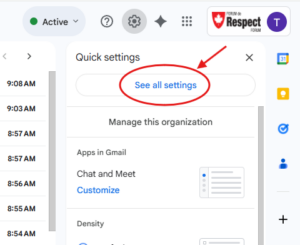
Step 4: Click the Forwarding and POP/IMAP tab

Step 5: In the “Forwarding” section, click Add a forwarding address
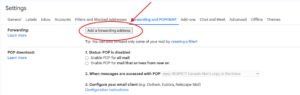
Step 6: Enter your new email address and click Next
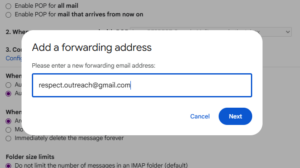
A verification email with a link will be sent to your new email address.

Step 7: Go to your new email account, open the verification email, and click the confirmation link

Step 8: Go back to the Forwarding and POP/IMAP tab in your old Gmail account (you may need to refresh the page).
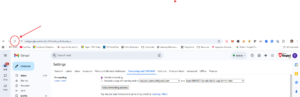
Step 9: You will get a confirmation pop-up that asks you to confirm your request on your phone
I was unable to take a picture of this, as it was on my phone.
Step 10: Select Forward a copy of incoming mail to and choose your new email address from the dropdown menu. Leave the default setting at Keep Gmail’s copy in the Inbox
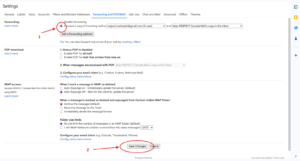
Click Save Changes at the bottom of the page
Step 11: Send a test email to your old RespectCanada email address from your personal email
You will receive the email in your RespectCanada email account and in your new gmail account.