Setting Up Your Gmail Account
Setting up a Gmail account is a simple process, but Google often changes the layout and the order that the steps are presented, so if the page looks slightly different, or the order of the pages has changed, don’t worry, just fill out the information on the page.
Step 1: Go to the Gmail Sign-Up Page
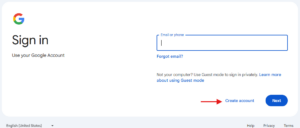
Open your web browser and navigate to the Gmail sign-up page: https://accounts.google.com
Click on the “Create Account” button
Step 2: Fill Out Your Personal Information
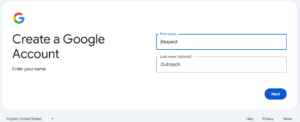
Enter Respect in the First Name field, and your Respect position, found in this list in the Last Name field.
For example, this is what I entered for my email:
First Name: Respect
Last Name: Outreach
NOTE:
Google ignores capitalization and periods, but please follow the format provided in the new email list.
For your reference, Google sees all of the following formats the same:
Respect.Outreach@gmail.com
RespectOutreach@gmail.com
respect.outreach@gmail.com
respectoutreach@gmail.com
Step 3: Enter Your Date of Birth and Gender
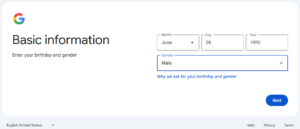
Provide your date of birth and gender. This information helps Google personalize some services and can be used for account recovery. If you are not comfortable entering your personal information, please feel free to use mine:
Date of Birth: June 25, 1970
Gender: Male
Step 4: Choose Your Gmail Address
Click on the “Create Your Own Gmail Address” button and enter your address from this list. Only add the part of the address before the @gmail.com.
For example:
Respect.Outreach
(Do not use this email address, use the one that has been assigned to you from the list)
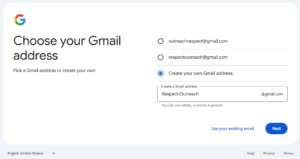
Step 5: Create a Strong Password
Create a strong password and enter it in the “Password” field. Confirm your password by typing it again in the “Confirm” field. A strong password should include a combination of uppercase and lowercase letters, numbers, and symbols.
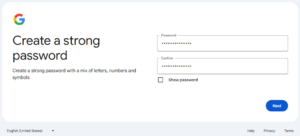
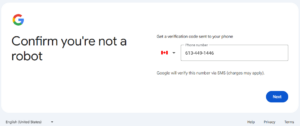
Step 6: Confirm You’re Not a Robot
Enter a phone number. This information is used for recovering your account if you forget your password or if your account is compromised.
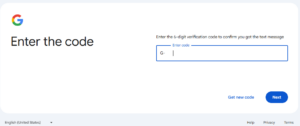
Enter the code:
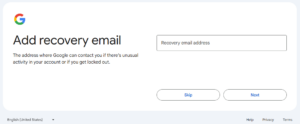
Step 7: Add a Recovery Email
If you don’t want to use your personal email, please feel free to use Respect.Outreach@gmail.com
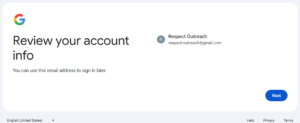
Step 8: Review Your Account
Double check the email address is correct.
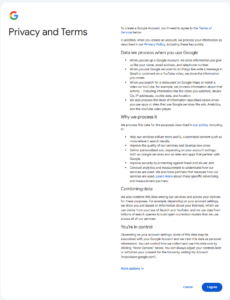
Step 9: Review Google’s Terms of Service and Privacy Policy
Read through Google’s Terms of Service and Privacy Policy. By creating a Gmail account, you agree to these terms. Click “I Agree” to indicate your agreement.
Step 10: Your Account Has Been Created
You now have a new Gmail account

Step 11: Check Your Email
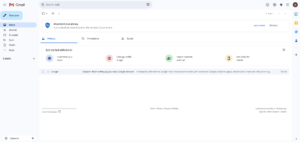
Your Gmail account has been created. Congratulations! Click on the 9 dots at the top right of the page to access your new Gmail account
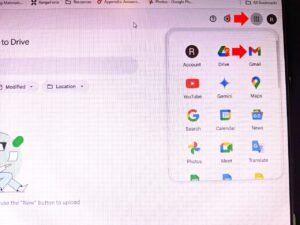
You can now start sending and receiving emails, and access other Google services with your new Gmail account. Enjoy! 😊